
Demo Environment Login Details
- Go to demo site link: https://demo.d2wabtcs7ljbf.amplifyapp.com/sign-in
- Use demo hiring manager account Sarah Johnson — sarah.johnson+clerk_test@example.com
- It will ask for a code. Use 424242
To use the Civic Match candidate demo account:
- Go to demo site link: https://demo.d2wabtcs7ljbf.amplifyapp.com/sign-in
- Use any of the following candidate accounts:
- Jane Smith — jane.smith+clerk_test@example.com
- Carlos Garcia — carlos.garcia+clerk_test@example.com
- Priya Patel — priya.patel+clerk_test@example.com
- It will ask for a code. Use 424242
Privacy check
- If you are demoing for users who do not have an account, you must use the demo Civic Match instance. That’s so we don’t share user data with someone who hasn’t signed our Privacy Policy and Terms of Service.
- If every person you are demoing for has an account, you can use the normal hiring manager interface. If you aren’t sure that every person has signed up, use the demo instance.
- If you are going to use the demo instance, feel free to seed it with test candidates or jobs that will resonate with the group you are demo’ing for.
Invite users
Real data is very impactful, so consider encouraging the people you are going to demo to create an account in advance of the demo. As long as they have signed up (even before their account has been approved), they can see real data.
If you are new to Civic Match, Sign up and complete your profile details to gain access to Civic Match.Demo Outline
Logging in
- Go to the login screen and use the same email address you used when you created your account. Your account should be tied to your work email. So sign in via that email address.
- You will receive an emailed verification code to complete the login.
- New login alternatives, if your email is compatible: Google or Microsoft
- New accounts will be approved automatically unless the submission is flagged for additional review.
- Please allow 24-48 hours for approval. You will receive an email confirmation once approved.
- Bookmark the Civic Match link: https://app.civicmatch.org/sign-in
Home screen
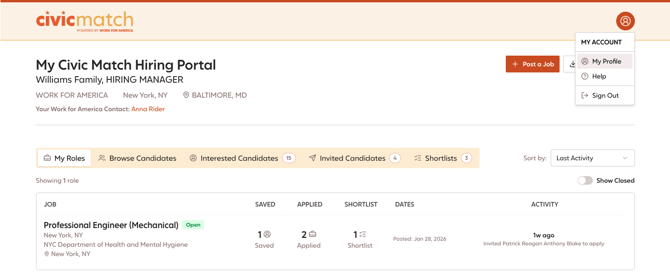
- This is your home screen/dashboard. You can see the five main areas of the Civic Match platform on your dashboard, your assigned Work for America contact (Relationship Manager), plus links to your profile and training and support documents in My Account, at the top right-hand corner.
My Roles
-
My Roles is designed to help hiring managers track candidates interested in, or aligned with, all of their posted roles.
-
In My Roles, you can:
- Post new jobs to the Civic Match job board
- View a record of roles you’ve already posted
- Track engagement and activity over time
- At first glance, you will see your open roles. Click 'Show Closed' to view your closed roles.
- Click a job title to open your job posting and get the full role view - including:
- Review job details
- Review or modify your shortlist
- See candidates who've saved/applied to your role, as well as candidates you've invited to apply.
- If you ever need to update the posting, click Edit Job. You can preview your changes, then submit — and they’ll automatically update on the job board.
- The “Edit job” form is also how you take down job listings. Just submit an update indicating that the job is closed by changing the closing date to a date in the past.
Posting Jobs
To post a new job, you have two options. From your dashboard, click either:
- Post Job (manual entry)
- Import Job (pulls info from an existing URL)
- This is a great option if you already have your job posted elsewhere and want to get roles posted faster.
- Simply, paste the full URL from your job post. The tool will scrape as much information as it can. Review and fill in any missing details before submitting.
** Walk through the job posting form**
-
For confidential roles: Add [CONFIDENTIAL] to the job title — so we know this role should not be visible to jobseekers on the job board.
-
For Apply by Email roles: Add clear application instructions and required materials in the Additional Instructions field.
-
Consider adding a colleague to your job posting to collaborate and ensure multiple users can have visibility into the role.
-
Jobs with clear, complete, and concise details perform best on Civic Match — so we strongly recommend including key information like:
- Application URL
- We encourage all roles to include an application link. But if your role is apply-by-email only, or you’re accepting resumes directly, be sure to add clear application instructions and required materials in the Additional Instructions field.
- Experience Level
- Choose as many as applicable or use the 'N/A (No Minimum Experience Required) for roles without minimum requirements.
- Compensation Type and Salary Range
- Choose from annual, monthly, or hourly pay preferences.
- Assign professional skills tags
-
Skills tags work both ways. Candidates use the same tags on their profiles — and you can also use them when searching the candidate database. The more thoughtful your tags are, the more inclusive your posting becomes — and the wider your candidate pool will be.
-
Overall, these details help candidates find your role faster, understand eligibility, and take action.
Once you’re ready, preview your job posting and submit it for approval. Some roles will be approved automatically, while others may require manual approval. Roles pending approval are typically reviewed within 48 hours.
Browse Candidates
Browse Candidates is where you can see all active candidate profiles. You can search, sort, and filter. All of the candidates in Civic Match are vetted and approved by our team, so these are real mission-driven professionals.
-
Use the search bar to find candidates by names, emails, keywords, and even results found inside resumes.
- **Search for a title or keyword to show what that looks like (e.g. Director, mental, finance)
- Using search filters allows for a more targeted approach.
- **Explain how filters allow you to add multiple conditions to find candidates who match all or some of them.
- You have visibility into all candidates, irrespective to if they are interested in your region.
- To find candidates who have explicitly expressed interest in your region, enable the Target Region filter for your region.
- Advanced search: Multiple filters can be used together to build more complex filtering criteria.
- **If you are demo’ing with real data, ask about roles and use one as an example to show stacking of filters. This is incredibly powerful.
- Demo Searches
- Communications Director: Mid to Senior Level experience and Professional Skills tags of Communications, Exec Leadership, Program Management
- Accountant interested in MD: Current State is MD OR Target Region has any of DMV AND Skills has any of Finance & Accounting.
- Mental Health Professional: SEARCH ‘mental’
- Design Lead: Senior level experience, Federal Agency is USDS, and Professional Skills tags of Information Technology and Design & User Experience
- The actions button lets you quickly copy candidate emails or profile information — which is helpful if you want to paste into an email, share with a colleague, or do outreach to a group.
**Select a candidate profile and walk through it line by line, explaining to hiring managers the information they can get about each candidate.**
Interested Candidates
In Interested Candidates, you’ll see job seekers who have saved or applied to your role. From here, you can:- See what role they’re engaging with
- Quickly review their profile
- Add them to a shortlist
- Or invite them to apply directly - This is a great way to focus on candidates who are already signaling interest.
Invited Candidates
You can also proactively reach out to candidates using Invite to Apply.
-
You’ll find this button directly on a candidate’s profile. When you click it, Civic Match sends an email invitation directly to the candidate.
-
We strongly encourage you to use this feature to proactively engage with candidates and drive applicants to your roles.
- The system will send a pre-generated note to the candidate, but you can also add a custom note here to be sent along with it.
- All emails are sent using the civicmatch@workforamerica.org email address.
- We can pass through any messages, or if you choose, candidates can reach out to you directly. Check the 'Share my email address with this candidate' and explicitly encourage them to contact you with questions in your personal note.
Short Lists
Shortlists are your curated candidate lists for specific roles — and building a strong shortlist helps you source more efficiently and collaborate with your team. You can add candidates to a shortlist in a couple ways:-
Option 1: From a Candidate Profile
-
Open a candidate profile and click '+ Add to Shortlist'.
Option 2: New Shortlisting Tool (From My Roles)
-
We also added a new shortlisting workflow directly from My Roles.
-
To use it:
-
Select the role you want to build a shortlist for
-
Click + Add candidates
-
Use search and filters to find strong candidates
-
Click the plus icon to add them to the shortlist
-
From there, you can:
-
Reorder candidates
-
Add notes
- Share the shortlist with colleagues so you can work together with colleagues or with our team to build targeted lists.
-
-
- Close out anytime — your progress saves automatically. You can always return later and find it again in the Shortlists tab.
Q&A and follow-up
- Send a Follow up email to each attendee with links to create an account, if needed, as well as links to resources and a demo video.
- If there are upcoming Civic Match Live events, highlight those!
- Civic Match Live is our virtual career fair series that connects government partners to job seekers who are interested in transitioning to state and local government.
- Government partners give two minute pitches on their respective governments and cities/states during the first half of the session. The remaining time is spent in breakout rooms where candidates can speak directly with those hiring managers about the opportunities available.